Most new stores print their first shipping labels on an office printer, cut them out and tape them on. Once you are packing every day, a dedicated label printer that prints a peel-and-stick label in one step is often one of the first equipment purchases.
The catch is that label printers are not interchangeable. A printer that works perfectly for one seller can be awkward for another because of label size, the software that creates the label, or the type of label being printed. This guide walks through the decisions in order, using documentation from Shopify, Etsy, Royal Mail, Canada Post, ShipStation and Zebra, linked in the sources. It does not recommend a specific model or quote prices.
Start with what you will print
Write down every label your business needs before looking at printers:
- Shipping labels for parcels, created in your store platform, a marketplace or shipping software
- Packing slips or despatch notes that go inside the box
- Product or barcode labels for shelves, bins or retail items
Shipping labels are usually the main job. Packing slips and small barcode labels can change which printer, or how many printers, you need.
Label size: 4x6 is the common format, but check yours
In North America the standard label-printer format is 4 x 6 inches. In the UK the same size is usually called 6x4, and some software lists 100 x 150 mm or A6 as the metric equivalent.
- ShipStation documents support for thermal printers that print 4" x 6", 100 mm x 150 mm and A6 labels, as well as standard desktop printers.
- Royal Mail Click & Drop offers A4, 6x4 and 4x3 label formats, with 6x4 and 4x3 intended for thermal or label printers. Its help pages note that integrated label-and-despatch-note templates print only on A4, so a 6x4 setup may mean printing despatch notes separately.
- Etsy lets you choose a 4x6 label-printer format under Shop Manager shipping label settings.
- Canada Post developer documentation says its ZPL labels are only available on thermal paper in 4x6 format.
Small printers built for 2-inch or narrower labels are handy for barcode stickers, but they generally cannot print a full shipping label. Shopify community threads include sellers who bought a narrow printer and then found it would not handle Shopify Shipping labels.
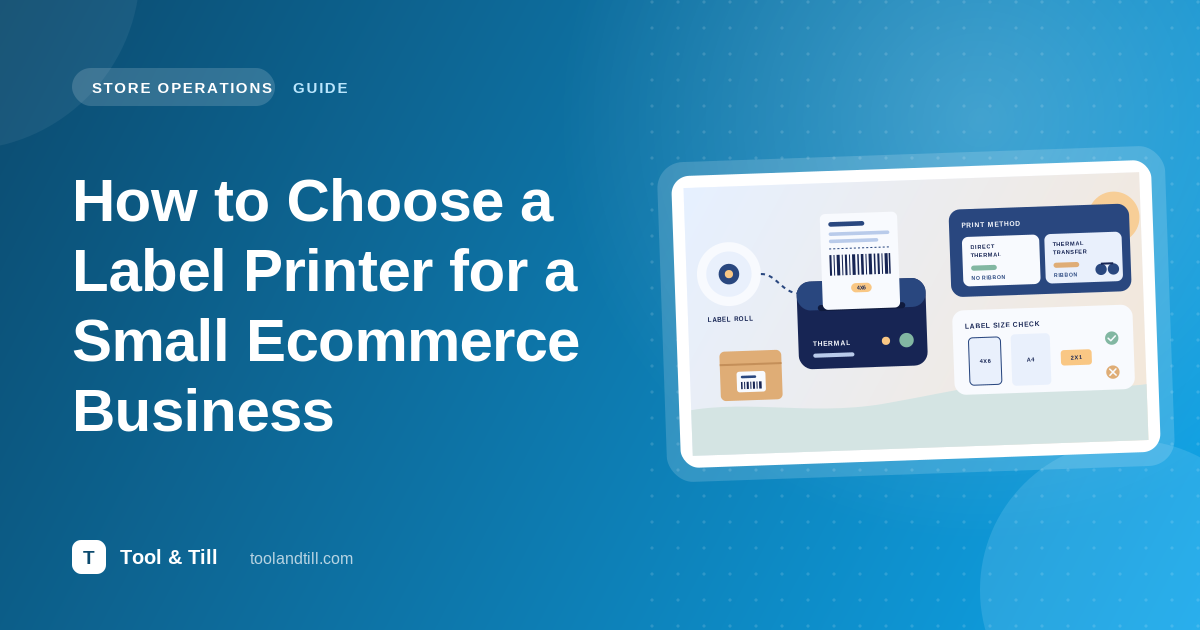
Direct thermal or thermal transfer
Most shipping label printers are thermal: a heated printhead makes the image, so there is no ink or toner. Zebra explains the two methods:
- Direct thermal prints onto chemically treated label stock that darkens with heat. No ribbon is needed. Zebra notes the image can fade over time and has limited resistance to heat, light and abrasion, which is why it suggests direct thermal for short-life labels such as shipping labels and receipts.
- Thermal transfer melts wax or resin from a ribbon onto the label. It works with a wider range of materials, including polyester and polypropylene, and Zebra describes it as suited to long-life uses such as asset tracking or outdoor labels.
For a parcel that arrives within days, direct thermal is the usual fit. If you also need durable product labels, for example on items stored in a damp garage or sold outdoors, look at whether a thermal transfer model or a separate printer makes more sense.
Check your platform's support list
This is the step sellers most often skip. Your platform or shipping software decides how the label file reaches the printer, and some publish a list of printers they support.
- Shopify keeps a Supported shipping label printers page in its help center, with lists that differ by country. It also says you can print labels bought in Shopify on a standard desktop printer. Shopify staff replies in its community note that a printer not on the list may still work, but support for it would come from the printer maker, not Shopify.
- ShipStation offers two printing methods: its ShipStation Connect app, which runs on the computer attached to the printer, or downloading a PDF and printing it yourself. Its help center notes that USB-connected printers tend to work best with Connect, that some wireless or network setups are not supported, and that Zebra printers can receive ZPL instead of PDF after a configuration change.
- Royal Mail states that it cannot provide technical support for printers, so driver and paper-size setup is your responsibility.
If you sell on more than one channel, check each one; a marketplace or carrier site may still need manual paper-size settings.
Connection and computer setup
Label printers connect by USB, Wi-Fi, Bluetooth or network cable depending on the model. If you pack at one desk, USB is the simplest option. If you create labels on a phone or tablet, confirm the printer maker's app supports that device. Either way, check for drivers for your operating system that let you set a 4x6 or 100 x 150 mm paper size.
The most common setup problem in seller forums is a 4x6 label printing small in the corner of a page. That usually means the driver or print dialog is still set to Letter or A4 paper, or scaling is not set to actual size. Stamps.com's guide to printing shipping labels suggests printing a sample label first to confirm your settings.
Product and barcode labels
If you also want product barcodes, check software support for the label sizes you plan to use. Shopify's Retail Barcode Labels app, for example, generates barcodes and prints labels from the product list, and Shopify's help notes that only label sizes supported by the app's templates can be printed. If the app or printer combination does not cover your size, App Store alternatives exist; compare what each supports before buying label stock. See our guide to essential Shopify app categories for where barcode apps fit.
Label printer buying checklist
- List every label you print: shipping, packing slip, product barcode
- Confirm the shipping label size each channel produces (4x6, 6x4, 100 x 150 mm, A6 or A4)
- Choose direct thermal for shipping labels; consider thermal transfer only for durable labels
- Check your platform's supported printer list for your country
- Check shipping software printing methods (app, PDF or ZPL)
- Confirm drivers for your computer, or app support for your phone or tablet
- Decide how packing slips will print if your label printer only takes 4x6
- Confirm the label stock the printer accepts (roll or fan-fold, core size, brand lock-in)
- Budget label stock as an ongoing cost in your profit margin calculation
- Print a sample label and scan the barcode before your first live order
FAQ
Do I need a label printer to start selling?
No. Shopify says labels bought in Shopify can be printed on a standard desktop printer, and carriers such as Royal Mail offer A4 formats. A label printer mainly saves time once order volume grows. Our dropshipping checklist covers what else to set up first.
Do thermal printers need ink?
No. Direct thermal printers use heat-sensitive labels and need no ink or ribbon. Thermal transfer printers use a ribbon instead of ink.
Will any 4x6 thermal printer work with my store?
Not necessarily. It also needs a driver for your computer and must work with the method your platform or shipping software uses to send labels. Check the platform's support list and help pages first.
Why does my label print in the corner of the page?
Usually the paper size is still set to Letter or A4. Set the printer and print dialog to 4x6 (or 100 x 150 mm) at actual size, then print a sample.
About this guide
This guide is based on the official help documentation from the platforms, carriers and printer maker listed in the sources. We have not tested any label printer for this article, and it is not a hands-on review. Supported printer lists and label options change, so check the current pages for your country before you buy.