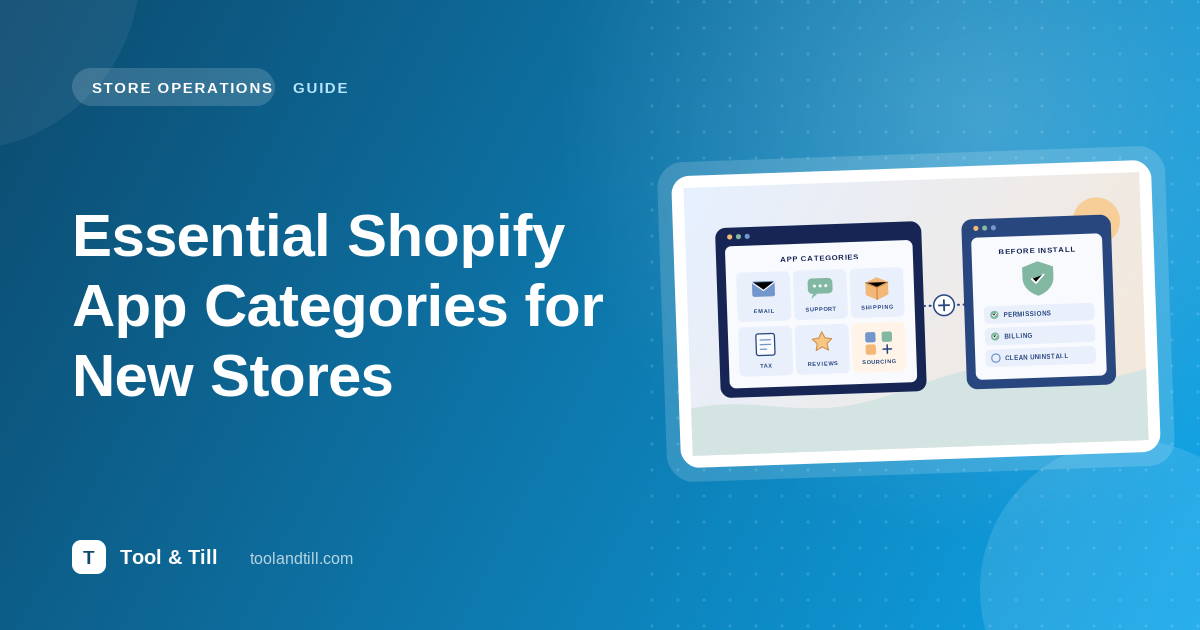
A new Shopify store can feel like it needs dozens of apps on day one. Most stores don't. Every app is another set of permissions, another bill to watch, and another piece of code that touches your storefront or admin. A better plan is to work out which jobs your store actually needs done, check what Shopify already covers, and only then add apps for the gaps.
This guide groups the common app categories a new store looks at, explains what to check in each, and covers the review steps Shopify's own Help Center recommends before you install anything.
Start with what Shopify already includes
Before you browse the Shopify App Store, check Shopify's own apps and settings. Shopify's Help Center lists several jobs that its built-in tools or free Shopify-made apps can cover:
- Sales tax: Shopify's tax documentation says Shopify Tax can calculate and collect tax automatically in supported regions, including the US, EU, UK, and Canada. In other regions you can set rates manually.
- Email marketing: Shopify Messaging is Shopify's own tool for branded marketing emails, and the Help Center points to the App Store if you need a separate email app.
- Customer chat: Shopify describes Shopify Inbox as a free app for managing messages from customers.
- Sign-up forms: The Shopify Forms app doesn't come installed on any plan, but Shopify says it's free to install and use.
- Automation: Shopify Flow runs automated workflows, and its connector list shows which third-party apps it can send triggers and actions to.
If a built-in option handles the job well enough for now, you can delay adding an app until you've outgrown it.
The app categories most new stores look at
Email and SMS marketing
This is usually the first category new owners shop for, because welcome emails, abandoned-checkout reminders, and newsletters drive repeat visits. Decide whether you need simple broadcasts or more advanced segmentation and flows. Our Shopify Messaging vs Klaviyo comparison walks through that choice using vendor documentation.
Shopify's new-store checklist also reminds you to set up email sender authentication, because major providers such as Gmail and Yahoo require SPF and DKIM records. Do that whichever tool you pick.
Customer support and chat
You need somewhere for pre-sale questions and order queries to land. Start with Shopify Inbox or a simple contact form. Look at a dedicated helpdesk app only once ticket volume or multiple team members make a shared inbox hard to manage.
Shipping and fulfilment
The Shopify App Store has a dedicated orders and shipping area for label printing, tracking pages, and fulfilment services. Before you install one, list which carriers and destination countries you actually ship to, and check that the app's listing supports them.
Sales tax and compliance
If Shopify Tax covers the regions you sell to, you may not need a tax app at first. Shopify's tax documentation notes that third-party tax apps, such as Avalara or Vertex, can automate calculations for stores with more complex needs. Ask an accountant before relying on any tool for filing.
Product reviews
Reviews help shoppers, but the app you choose will add widgets to your product pages. Check how it collects reviews, whether you can moderate them, and whether its storefront widget is added as a theme app block (more on that below).
Sourcing, dropshipping, and print-on-demand
If you don't hold stock, the sourcing app is core infrastructure, not an add-on. Shopify's Help Center keeps a page on dropshipping and print-on-demand apps. Our dropshipping checklist covers supplier vetting before you connect one.
How to vet any app before installing it
Shopify's Help Center sets out several checks worth doing every time.
Read the permissions screen
Before an app installs, Shopify shows an install screen listing the data and areas of your store the app needs to access, with a link to the developer's privacy policy. Read it. If an app asks for access that seems unrelated to its job, ask the developer why.
Shopify notes that apps using order data may ask for recent orders or all orders, and that Shopify reviews apps requesting access to all orders to make sure the data is needed.
Check compatibility
Developers can set installation requirements, such as shipping countries, currency, or business address. Shopify shows a "Not compatible" message when your store doesn't meet them. Some Online Store apps only work with certain themes, so check the listing and the app's documentation.
Understand the billing model
According to Shopify, apps can charge a recurring monthly fee, a one-time fee, or usage-based charges, and many offer a free plan or trial. Most app charges appear on your Shopify bill, but some third-party apps bill you directly, outside Shopify. Shopify also notes that charges for apps installed during your Shopify free trial show up on your first invoice after the trial ends.
Look at quality signals and support
Shopify describes the Built for Shopify badge as a sign that an app has passed Shopify's testing and meets its highest quality standards. You can filter App Store results to show only those apps. Read merchant reviews too. Remember that Shopify only supports apps it makes itself; for third-party apps you contact the developer, so check that the support channels look active.
Fewer, well-chosen apps are easier to audit, cheaper to run, and less likely to conflict with each other.
Uninstalling cleanly
Shopify says that uninstalling an app revokes its access to your store data. What happens to the storefront depends on how the app was built. Shopify's developer documentation says that blocks added through theme app extensions are removed from your themes automatically when you uninstall the app. Older apps that edited theme files directly can leave code behind, so duplicate your theme before installing such apps and ask the developer how to remove their code.
Also check external billing: if an app charged you outside Shopify, confirm the subscription has ended with the developer.
New-store app checklist
- List the jobs your store needs done in the first three months.
- Check whether Shopify Tax, Shopify Messaging, Shopify Inbox, Shopify Forms, or Flow already covers each one.
- For each gap, shortlist apps that match your countries, currency, and theme.
- Read the install screen permissions and the developer's privacy policy.
- Note whether billing runs through Shopify or directly with the developer.
- Prefer apps that use theme app blocks over ones that edit theme files.
- Duplicate your live theme before installing anything that touches the storefront.
- Review installed apps every few months and remove any you no longer use.
If you're still deciding on a platform, our Shopify vs WooCommerce comparison explains how hosted and self-hosted stores handle extensions differently.
About this guide
This guide is based on Shopify's Help Center and developer documentation, not a hands-on test of individual apps. App features, compatibility rules, and badge criteria change, so confirm details on each app's listing and in Shopify's current documentation before you install.