Disclosure: Tool & Till earns a commission if you sign up for Printful through links in this article, at no extra cost to you.
Connecting Printful to Shopify takes a few minutes. Getting orders to flow reliably from Shopify to Printful is the part that needs more care. An order only reaches Printful's production queue if Shopify routes it to Printful's location, if it meets Printful's import rules, and if Printful's own approval settings let it through. This guide follows Printful's help center through each of those settings.
Before you start
You need three things in place:
- An active Shopify store. Printful's troubleshooting article notes that a store whose free trial has expired cannot sync, and that the store should be public rather than password-protected when you hit sync errors.
- A Printful account. Printful's pricing page (checked November 2026) lists the Free plan at $0 a month with unlimited stores; you pay for each product when a customer orders it, plus shipping and taxes. Create a Printful account if you do not have one.
- A billing method in Printful. Customers pay you through Shopify. Printful then charges your Printful Wallet or linked card separately for production and shipping, according to its setup guide.
If you have not chosen products or a niche yet, start with our guide to starting a print-on-demand store with Printful.
Step 1: Install the Printful app and connect the store
Printful's help center describes two starting points that end in the same place:
- From Shopify: in Shopify Admin, open Apps, find the Printful app in the Shopify App Store and install it. Then sign in to Printful inside the embedded app.
- From Printful: in the Printful Dashboard, open Stores, choose Shopify and click Connect. A new tab asks you to install the Printful app; click Install and sign in with your Shopify account.
When you return to Printful, the store should show as connected.
If the connection fails, Printful's troubleshooting article lists the usual causes: the store is already connected to another Printful account (remove it there under Settings > Store settings > General > Remove store), a skipped app permission during setup, or browser cache. Try a private window or another browser before contacting support.
Step 2: Add or sync products
There are two ways to get Printful products into Shopify.
New products
In the Printful Dashboard, go to Stores, choose your store and click Add product. Pick the product, design it in the Design Maker, choose mockups, write the title, description and tags, set the retail price and click Submit to store. Printful creates shipping profiles for the product automatically when it publishes.
Shopify allows up to 100 variants per product, so a shirt in every color and size may fail to publish until you trim the selection.
Existing Shopify products
If the product already exists in Shopify, turn on the setting that imports unsynced products from Shopify, then open each product in Printful and sync it by choosing the matching Printful product and uploading the print file.
Printful's import settings article carries one warning worth repeating: do not delete products in the Printful Dashboard while they still exist in your store, because that deletes them from the storefront too. Unsync or ignore them instead.
Step 3: Set how Shopify hands orders to Printful
This is where order routing happens. Printful's article on order processing in Shopify describes three settings that must agree.
Order processing in Shopify
In Shopify Admin, go to Settings > General > Order processing and find "After an order has been paid":
- Automatically fulfill the order's line items sends paid orders to Printful without you touching them.
- Don't fulfill any of the order's line items automatically means you open each order in Shopify and click Request fulfillment, then Send fulfillment request.
Inventory location
Printful must appear as a location on each Printful variant (Products > product > variant > Inventory). If you see "Inventory will be stocked at", choose Multiple locations. Printful notes that Shopify routes an order only to Printful's location, so a product stocked at your own location will not reach Printful.
Shipping markets
If customers in a country cannot check out, Printful's troubleshooting article says to confirm that the country belongs to an active market under Shopify Admin > Markets.
Step 4: Choose when orders go to production
Once an order reaches Printful, its own settings decide whether it is produced straight away. These live under Settings > Store settings > Orders in the Printful Dashboard, according to the help center:
| Setting | What it does |
|---|---|
| Automatically confirm orders to be fulfilled | Qualifying orders go to fulfillment once billing is set up |
| Manually confirm all imported orders | Every order is saved as a draft until you approve it |
| Import unsynced orders | Orders with unsynced items still import, as drafts or "Not synced" |
| Notify about unsynced orders | Emails you when an unsynced order arrives |
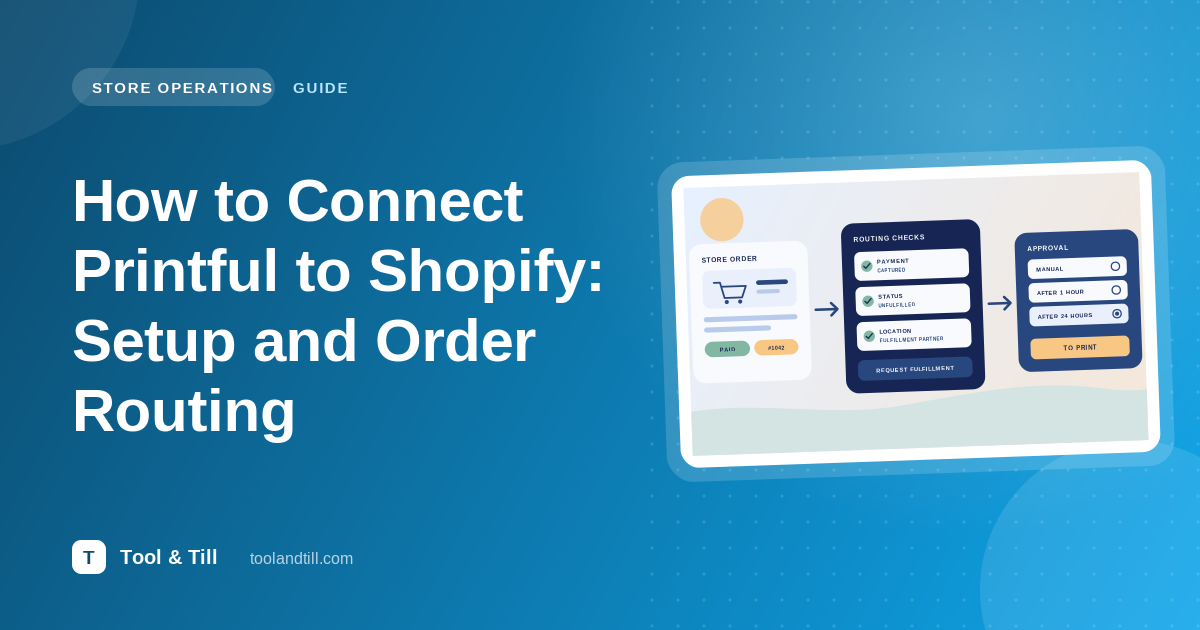
Printful's store settings article also lists approval timing options: manual, automatically after 1 hour, automatically after 24 hours (the default), or at a set time each day. It says you are charged when an order goes to production, for the production price plus shipping. Its order import article adds that, with manual confirmation on, the Wallet is charged only after you confirm, and recommends turning on Wallet auto-recharge to avoid delays.
For a new store, Printful's import settings article suggests starting with Import unsynced orders and Manually confirm all imported orders switched on, so you can check each order while you learn.
Step 5: Place a test order
Before you promote the store, order one product yourself. Printful's pricing page lists 20% off sample orders on the Free plan, with one sample order a month of up to three items. A real order also tests the whole route: Shopify payment, fulfillment request, import into Printful and tracking back to Shopify.
When an order does not appear in Printful
Printful's help center says orders usually import within minutes. If one is missing after 10 to 15 minutes, check these points from its troubleshooting article:
- Payment is captured (Printful imports only fully paid orders)
- The order status in Shopify is Unfulfilled
- The order number is unique
- It is not a Shopify draft order or a local pickup order
- Printful is the inventory location for the ordered variant
- The product is synced in Printful
Then open the store in the Printful Dashboard and click Refresh data. If an order was edited after import, for example by swapping an item, Printful says Shopify may not mark it fulfilled automatically; send the tracking and mark it fulfilled in Shopify yourself.
Setup checklist
- Shopify plan active and store not locked behind a trial that has ended
- Printful app installed; store shows as connected in Printful
- Products created or synced, each with 100 variants or fewer
- Shopify order processing set to automatic, or a habit of clicking Request fulfillment
- Printful listed as the inventory location on every Printful variant
- Target countries included in an active Shopify market
- Printful approval setting chosen and Wallet auto-recharge turned on
- One test order placed and tracked through to delivery
FAQ
Does the Printful Shopify integration cost anything?
Printful's Shopify integration page describes the integration as free to use, with no upfront fees or minimum orders. Shopify's own subscription and payment fees are separate; check Shopify's pricing page for your country.
Can I review orders before Printful prints them?
Yes. Printful's help center says you can turn on "Manually confirm all imported orders" under Settings > Store settings > Orders, which saves each order as a draft until you approve it.
Why is my Printful location giving a "You already have a location with this name" error?
Printful's troubleshooting article says to go to Shopify Admin > Settings > Locations, deactivate and delete the existing Printful location, then reconnect.
Next step
If you are still choosing a fulfillment partner, our Printful vs Printify comparison sets out how the two models differ. To price your listings with production and shipping included, use our guide on calculating profit margin for an online store. When you are ready, connect your Shopify store in Printful and run one test order before you add the rest of the catalog.
This guide is based on Printful's documentation, not a hands-on test. Menu names and settings can change; check the linked sources for your account.