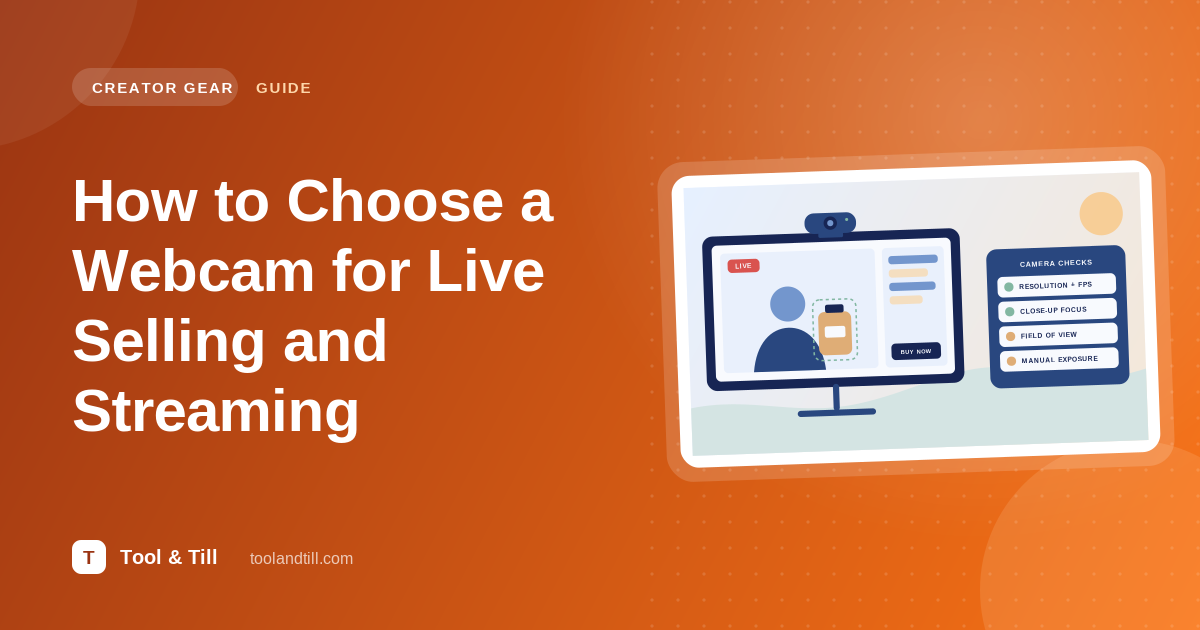
Live selling asks more of a camera than a video call does. Viewers want to see the product clearly, read a label, judge a colour, and trust what they see, often for an hour or more at a time. A webcam is the simplest way to get a steady, always-ready camera on your desk, but not every webcam suits product close-ups or every streaming app.
This guide explains what to check before you buy, using documentation from streaming platforms, software makers and camera manufacturers. It does not recommend a specific model; it gives you the questions to answer for your own setup.
Step 1: Confirm how you will go live
Start with the platform and the software, because they decide whether a webcam is even the right tool.
- YouTube: Google's YouTube Help explains that you can go live straight from a computer with a webcam, without encoding software, after live streaming is enabled on your channel. It notes that enabling live streaming for the first time can take up to 24 hours, so set it up before your first scheduled show.
- TikTok: on desktop, TikTok LIVE Studio lets you add a camera as a source, according to third-party setup guides. External webcams generally need the desktop app rather than the phone app; check TikTok's current eligibility rules for LIVE and TikTok Shop in your market.
- Streaming software: if you use OBS Studio to combine your camera with product images, overlays or a second camera, OBS's knowledge base describes adding the webcam as a Video Capture Device source. You can then send the OBS output to your platform, or use OBS's virtual camera in apps that only accept a camera input.
If your platform only supports going live from the phone app, a webcam may not help at all, and a phone on a stand is the better choice.
Step 2: Check resolution and frame rate in practice
Webcam boxes list a maximum resolution and frame rate, but what matters is what your software actually receives.
OBS's knowledge base explains that the Video Capture Device source has a Resolution/FPS Type setting; switching it to Custom lets you choose the resolution and frame rate, and if the device does not support the mode you pick, the source shows nothing. Logitech's support guide for streaming at 60 FPS in OBS uses a custom resolution, a frame rate setting and a specific video format, which shows that higher frame rates can depend on settings, not only the camera.
Before buying, find the camera's supported resolution and frame rate combinations in the manufacturer's documentation, not just the headline number on the box.
Also check your upload connection. YouTube's streaming tips stress a stable connection, because a disruption can break the stream.
Step 3: Make sure it can focus on products
This is where many webcams designed for video calls struggle. Autofocus that works on a face can hunt back and forth when you hold a product up close.
Logitech's support documentation says Auto Focus is on by default in its camera software, and that you can turn it off and set focus manually with a slider. For live selling, that matters: you can lock focus at the distance where you hold products, so the camera does not refocus on your face every time you move.
When comparing webcams, check:
- Whether focus is fixed or autofocus
- Whether the maker's software lets you switch autofocus off and set focus manually
- The closest focusing distance, if the manufacturer publishes it
Step 4: Choose a field of view for your space
A wide field of view shows more of your room, which is rarely what a product stream needs. A narrower view keeps attention on you and the product and hides clutter.
Some webcams let you adjust this in software. Elgato's Camera Hub documentation for its Facecam, for example, includes field-of-view and zoom controls alongside exposure and white balance. Check whether the camera you are considering can narrow its view in software, or whether you will rely on cropping in OBS.
Step 5: Look for manual exposure and white balance
Auto exposure and auto white balance can drift during a long stream, especially when you hold up bright packaging or a dark product. Elgato's Camera Hub documentation describes manual exposure controls and suggests adding more light if the camera has to push ISO high. It also notes that automatic white balance can be thrown off by coloured lighting in the room.
Good lighting does more for image quality than a higher resolution. Our guides to lighting for product photography at home and ring light vs softbox apply just as much to live video.
Step 6: Consider your phone first
A recent phone may already be a better camera than an entry-level webcam. Apple's support documentation explains Continuity Camera, which lets an iPhone work as a webcam for a Mac, wirelessly or over USB, with listed minimum iPhone, iOS and macOS versions. Apple recommends mounting the iPhone stable and in landscape orientation. Third-party apps offer similar phone-as-webcam options for Windows.
The trade-off: a phone used as a webcam is a phone you cannot use for chat moderation, and it needs a mount and often power for long streams.
Webcam checklist for live selling
- Your platform supports desktop or software-based streaming in your market
- The camera works with your streaming app (OBS, LIVE Studio or browser)
- Supported resolution and frame rate combinations are documented
- Autofocus can be turned off and focus set manually
- Field of view or zoom can be adjusted, or you can crop in software
- Manual exposure and white balance are available
- It mounts on your monitor or a tripod at eye level
- You have soft, even light and a separate microphone
Audio matters as much as video in a live demo; our guide on how to choose a wireless mic for product demos covers that side.
FAQ
Do I need a 4K webcam for live selling?
Not necessarily. Platforms and your connection may not deliver the full resolution to viewers, and lighting and focus usually make a bigger visible difference. Check the settings your streaming software can actually use.
Why does my webcam keep refocusing when I show a product?
Autofocus is trying to choose between your face and the product. If your camera's software allows it, switch autofocus off and set focus manually at the distance where you hold products, as Logitech's support documentation describes.
Can I use two cameras in one stream?
Yes, with streaming software such as OBS Studio, which lets you add several video capture sources and switch scenes. Check that your computer can handle more than one camera at your chosen settings.
Is a phone better than a webcam?
It can be, especially for image quality. Apple's Continuity Camera lets supported iPhones act as a webcam for a Mac. A webcam is simpler to leave set up permanently.
About this guide
This guide is based on documentation from YouTube, OBS Studio, Logitech, Elgato and Apple, plus setup guides for TikTok LIVE Studio, listed below. We have not tested specific webcams for this article, and it is not a hands-on review. Platform requirements and software features change, so confirm current details before you buy.