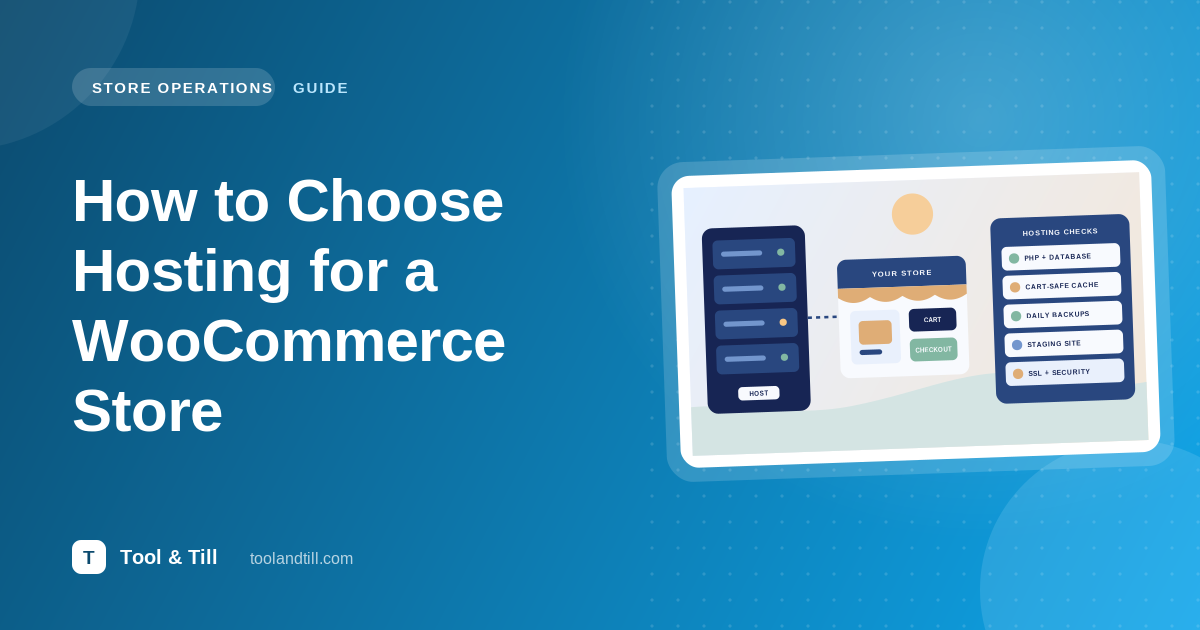
WooCommerce is free to install, but it needs somewhere to run. Unlike a hosted platform, a WooCommerce store depends on your hosting for speed, uptime, security updates and backups. A host that is fine for a blog can struggle with a store, because carts, checkouts and customer accounts are dynamic pages that change for every visitor.
This guide explains what to check when choosing hosting for a WooCommerce store, using documentation from WooCommerce and WordPress. It does not recommend specific hosts or quote prices; instead it gives you the questions to ask any host before you sign up.
If you are still deciding between platforms, start with our Shopify vs WooCommerce comparison, which explains what you take on when you choose self-hosted software.
Check 1: Server software meets current recommendations
WooCommerce publishes server recommendations for current releases. At the time of writing, that page lists PHP 8.3 or greater, MySQL 8.0 or greater (or MariaDB 10.6 or greater), HTTPS support and a WordPress memory limit of 256 MB or greater. WordPress's own requirements page sets similar recommendations for WordPress itself and says HTTPS is required.
These numbers change with new releases, so check the pages directly. When you talk to a host, ask:
- Which PHP versions are available, and can you switch versions yourself?
- Which MySQL or MariaDB version is used?
- What is the PHP memory limit, and can it be raised?
- Is a free or included SSL certificate available for HTTPS?
WooCommerce's guide to updating PHP and WordPress explains why staying on supported versions matters for security and compatibility.
A host that still defaults to an old PHP version is a warning sign, even if you can upgrade it manually.
Check 2: The host understands store caching
Caching makes WordPress sites fast by serving saved copies of pages. For a store, that can break things. WooCommerce's developer documentation on configuring caching plugins says the Cart, My Account and Checkout pages must not be cached, because they show information specific to each customer.
WooCommerce's troubleshooting page for an endless loading spinner on checkout adds that caching, CDN, firewall or proxy layers can interfere with the requests checkout relies on.
Ask the host:
- Does server-level caching exclude cart, checkout and account pages automatically?
- Can you clear the cache yourself?
- Is object caching available for database-heavy pages?
- If a CDN is included, how does it handle dynamic store pages?
After launch, test adding to cart, changing quantities and checking out in a private browser window. A wrong cart count usually means a page is being cached that should not be.
Check 3: Capacity for dynamic traffic
Pages that cannot be cached are built fresh for every request, so they use server resources directly. WooCommerce's article on choosing WooCommerce hosting suggests avoiding generic shared hosting that does not mention WooCommerce, and lists PHP workers, object caching and a CDN among the features to look for.
You do not need to understand every technical term. Ask the host plainly what happens when many shoppers are checking out at the same time, how resource limits work on your plan, and how easily you can upgrade before a sale or launch.
Check 4: Backups and a staging site
WooCommerce's guide on how to update WooCommerce recommends taking a current backup and testing updates on a staging site where possible. It notes that store data lives in both the files and the database, so a backup needs both.
For a store, that means checking:
- Automatic daily backups, kept for a period you are comfortable with
- Backups stored off the server, not only on the same machine
- One-click restore, or clear instructions for restoring
- A staging site you can create and push changes from
- How orders placed on the live site are handled when you push from staging
The last point matters: restoring an old backup or pushing a staging copy over the live site can overwrite recent orders. Ask the host how its tools deal with that.
Check 5: Security and payments
Your payment setup affects what the hosting must handle. WooCommerce's PCI-DSS compliance documentation explains that if you use a gateway that processes payments off-site or through hosted fields, your site does not handle raw card data directly, but PCI-DSS still applies because your site serves the checkout page, with a reduced scope. It also says compliance is ultimately the store owner's responsibility.
Ask the host about:
- Automatic SSL renewal
- Malware scanning and a web application firewall
- Automatic updates for WordPress core, and whether plugin updates are optional
- Two-factor login for the hosting dashboard
- Support response routes when the store is down
Check 6: Who does what
Hosting ranges from a bare server you manage yourself to managed WordPress or WooCommerce plans where the host handles updates, caching and backups. Managed plans cost more but remove work; unmanaged hosting gives control but makes you the system administrator.
Be honest about your time. Hosting cost is part of your running costs, so include it when you calculate profit margin for your store.
WooCommerce hosting checklist
- PHP, database and memory meet WooCommerce's current recommendations
- HTTPS included, with automatic certificate renewal
- Cart, checkout and account pages excluded from caching
- Object caching and CDN options explained
- Clear resource limits and an upgrade path for traffic spikes
- Daily off-server backups with tested restore
- Staging site that does not overwrite live orders
- Security scanning, firewall and two-factor login
- Support channel and hours that fit your store
- Clear split of what you manage and what the host manages
FAQ
Can I run WooCommerce on cheap shared hosting?
It can work for a very small store, but WooCommerce's hosting guidance warns against generic shared hosting that does not mention WooCommerce. Check the caching, resource and backup points above before deciding.
Do I need managed WooCommerce hosting?
Not necessarily. Managed hosting is mainly about who handles updates, caching and backups. If you are comfortable doing that yourself, an unmanaged plan can be enough.
How do I know my caching is breaking checkout?
Typical signs are wrong cart counts, a checkout that loads forever, or customers seeing old cart contents. WooCommerce's documentation lists caching, CDN and firewall layers as common causes.
Do I need an SSL certificate?
Yes. WordPress's requirements say HTTPS is required, and many payment gateways also require it. Most hosts include a certificate.
About this guide
This guide is based on WooCommerce and WordPress documentation, listed below. It is not a hands-on test of hosting providers and does not rank or recommend specific hosts. Server recommendations change with new versions, so confirm the current figures on the linked pages before choosing a plan.