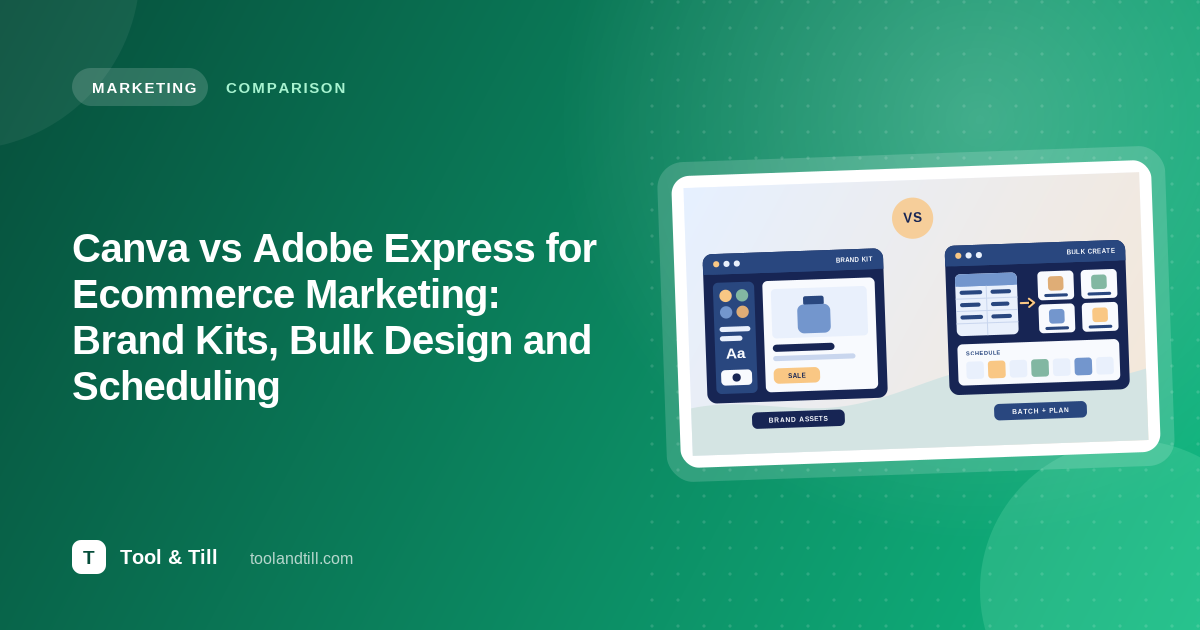
Canva and Adobe Express are both browser-based design tools that small stores use for social posts, promo banners, product graphics and short videos. On the surface they look similar: templates, drag-and-drop editing, brand assets and built-in scheduling. The differences that matter for a store are in the workflow details, such as how brand assets are stored, how you produce many product variations at once, and how designs get to your sales channels.
This comparison is built from each vendor's help documentation. It does not rank either tool; it helps you decide which workflow fits the way you already work.
Brand kits: keeping every graphic on-brand
Canva Brand Kit
Canva's Help Center describes the Brand Kit as a place to store logos, colours, fonts and templates. Canva lists Brand Kits as available on its paid and organisation plans (Pro, Teams, Business, Enterprise, Education and Nonprofits). Its documentation also says you can set up a Brand Kit automatically from your website or a PDF, and that Brand Templates added to a kit can be referenced by Canva AI when generating designs.
Adobe Express brands
Adobe's help pages describe creating a brand from scratch or from an existing Creative Cloud Library, with logos, colours, fonts, graphics and templates. Custom fonts must be OTF or TTF files. Adobe also documents converting a library into a brand with Use as brand, which matters if your product photos or logos already live in Photoshop or Illustrator libraries.
If your assets already sit in Creative Cloud Libraries, Adobe Express can reuse them directly. If you are starting fresh, Canva's option to build a kit from your website is a quick starting point.
Making many product graphics at once
Seasonal sales and new collections often mean the same layout repeated for dozens of products. Both tools document a bulk feature that fills a template from rows of data.
- Canva Bulk Create links data in rows and columns to placeholder elements in a design. Canva's help pages say you can upload a CSV or XLSX file, enter data manually, or start from a Canva Sheet, and choose either one multi-page design or a separate design per row. Canva notes that image links in your data do not work; images need to be uploaded or chosen from your Canva library. It lists the feature on paid plans and on desktop only.
- Adobe Express Bulk create builds variations of one design by swapping text and images from a spreadsheet. Adobe's steps have you create a header for each element you want to change, upload the spreadsheet, connect each header to an element on the page, then add images per variation before creating the pages.
Both vendors publish row or variation limits, and those figures differ between help articles, so check the current limit in your account before planning a large catalog job. Clean product data helps here: our guide to building a product fact sheet before writing store copy covers the fields worth collecting first.
Product photo edits
Both tools include a background remover, which is often the first edit a store makes to a product shot.
- Canva documents its BG Remover in the image editing toolbar and lists it on paid plans; free accounts see an upgrade prompt.
- Adobe Express documents Remove background in the image panel, and notes the tool may drop fine details or low-contrast areas, so check the cutout. For a transparent result, Adobe says to set the background to no fill and download as a transparent PNG.
A cleaner original photo makes either tool's cutout easier. Our home product photography lighting guide covers a repeatable setup.
Scheduling social posts
- Canva Content Planner lets you schedule designs to connected social accounts from the planner or from the editor's Share menu. Canva's help notes that Instagram scheduling must be done from a desktop browser, and that a design is scheduled to one post and one account at a time.
- Adobe Express Content Scheduler is documented as a place to plan, preview, schedule and publish posts, with drag-and-drop rearranging of draft and unscheduled posts. Adobe lists Instagram, Facebook, X, Pinterest, LinkedIn and TikTok as publishing destinations.
Account limits and supported networks change, so confirm the current list for each channel you sell through.
Getting designs into your store
The Shopify App Store lists Canva Connect, an app by Seguno that describes importing product and collection images into Canva and sending finished designs back to Shopify. If you rely on a direct store connection, check the app listing and the developer's support details, since it is a third-party app rather than a Canva feature. For Adobe Express, plan on exporting files and uploading them to your store unless you find a current integration in your platform's app store. Our overview of essential Shopify app categories for new stores explains how to vet apps like this.
Which fits your store?
- You already use Photoshop, Illustrator or Creative Cloud Libraries: Adobe Express can turn existing libraries into brands.
- You want to build a brand kit quickly from scratch: Canva documents generating one from your website or a PDF.
- You produce many product graphics from a spreadsheet: both tools offer bulk creation; compare current limits and how each handles images.
- You plan your social calendar in the same tool: compare the supported networks and account rules for the channels you actually use.
Checklist before you commit
- List the five graphic types you make most (for example, sale banners, product cards, story ads).
- Check which features you need are on the free plan versus a paid plan, on the vendor's current pricing page.
- Upload your logo, fonts and colours and confirm they apply cleanly to a template.
- Run a small bulk test with five products from a CSV, including images.
- Export one design at the exact sizes your store theme and ad channels require.
- Connect one social account and schedule a test post to confirm the channel is supported.
- Decide how finished files reach your store: direct app, export and upload, or a shared folder.
This comparison is based on Canva and Adobe help documentation and app listings, not a hands-on test. Features, plan availability and limits change often, so check each vendor's current documentation before you choose.