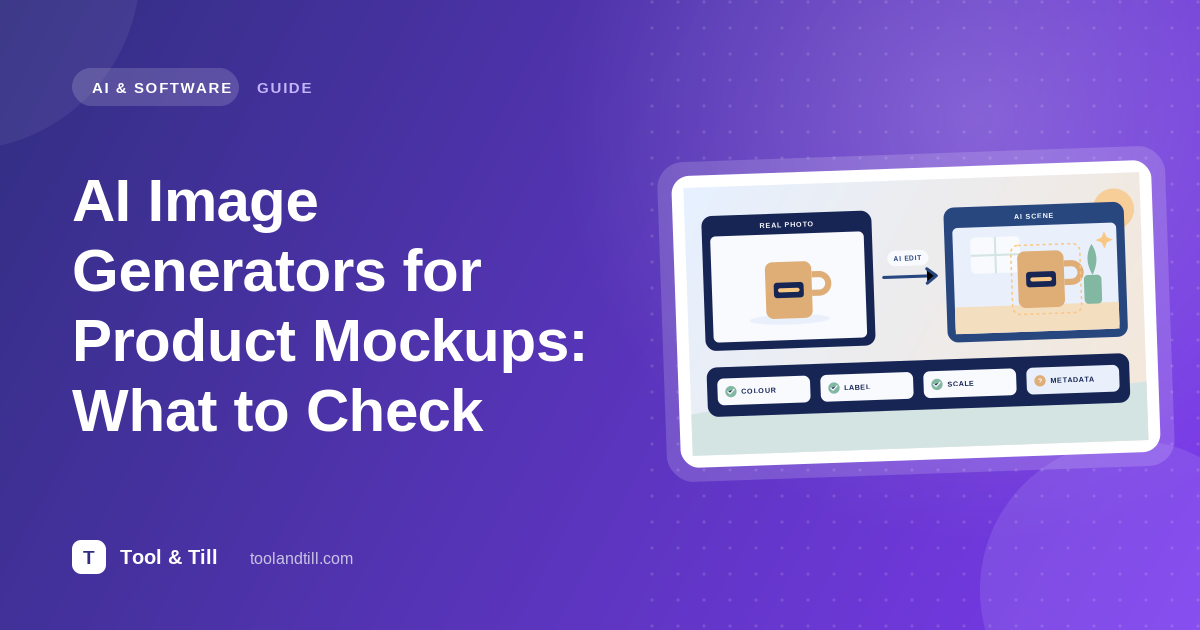
AI image generators can put a product into a kitchen, a beach scene or a studio set in seconds. For small stores, that is tempting: lifestyle shots usually need props, locations and time. But a product image is also a promise about what the buyer will receive. If the AI changes the colour, the texture, the size or a detail of the product, the image stops being a mockup and becomes a misleading picture.
This guide explains what to check before you use AI-generated or AI-edited images in a store or a shopping feed. It is based on documentation from Google Merchant Center, Shopify, Adobe and OpenAI, plus the US Federal Trade Commission's guidance on AI and deception. It does not rank image generators.
Start with what the image is for
Not every image carries the same risk. Sort your planned images into three groups before you open any tool:
- Main product image: the one shown in search results, shopping ads and collection pages. Buyers use it to judge exactly what they are buying.
- Additional product images: angles, details, scale and in-use shots on the product page.
- Marketing images: banners, social posts, email headers and ads where the scene sets a mood.
AI backgrounds and scenes fit most naturally in the third group. The closer an image gets to the main product image, the more it must show the real item.
Check 1: Does it show the actual product?
Google's Merchant Center help on the image link attribute says product images should accurately show the product, including its colour, pattern, finish and material, with a separate image for each variant. It also says not to use placeholders, generic visuals or illustrations that do not show the physical product, and not to add promotional text, watermarks or borders to the main image.
That rules out a fully generated "product" for a shopping listing. A safer workflow is to start from a real photo of the item and use AI only to change what is around it. Our guide to product photography lighting at home covers how to get that starting photo right.
After generating, compare the result with the real product side by side:
- Colour and finish match, including under the new scene's lighting
- Logos, labels and printed text are unchanged and readable
- Shape, proportions and small details (buttons, seams, ports) are intact
- Scale looks right next to other objects in the scene
- Nothing has been added that is not included in the box
Check 2: Does the platform require AI metadata?
Some platforms now expect AI-generated images to stay identifiable. Google's image link documentation says images created with generative AI must contain metadata indicating that they were AI-generated, and that this metadata should not be removed.
Several tools add this kind of information for you:
- Adobe Firefly: Adobe's Firefly FAQ says Adobe automatically applies Content Credentials to certain exports that use Firefly outputs, indicating that an AI tool was used. Adobe's generative AI user guidelines say you must not remove, alter or disable Content Credentials.
- OpenAI image generation: OpenAI's announcement of 4o image generation says generated images include C2PA metadata identifying them as AI-generated.
- Shopify media generation: Shopify's Help Center page on media generation says an invisible watermark is applied to generated images.
Check whether your export, compression or image CDN step strips metadata. A screenshot or a "save for web" export can remove it without you noticing.
Check 3: Can you use the output commercially?
Read the terms of the tool you use, not a summary of them. Adobe's Firefly FAQ, for example, says outputs from features without a beta label can be used in commercial projects, and that beta feature outputs can also be used commercially unless the product says otherwise. Other tools set their own rules, and free tiers sometimes differ from paid plans.
Also check what you put into the tool. Uploading a photo you do not own, a competitor's product shot or a recognisable person adds risks the tool's terms will not cover.
Check 4: Will the scene mislead buyers?
The US Federal Trade Commission's artificial intelligence page makes the point that there is no AI exemption from existing laws against unfair or deceptive practices. A generated image is judged like any other advertising image: by what it leads a buyer to believe.
Watch for scenes that imply something you do not sell or cannot support: extra accessories, a larger size than real, results the product does not deliver, or people who seem to be real customers.
Check 5: Does the edit tool keep the product intact?
Background tools differ from full image generation. Shopify's media editor documentation describes replacing a background with a solid colour or transparency, with the subject detected automatically and a manual correction option, as well as generating a new scene from a text prompt. Its prompt tips suggest describing how the product sits on a surface so it does not appear to float.
Even so, edges, reflections and transparent parts (glass, packaging film, jewellery) are where edits go wrong. Zoom in at 100% before publishing.
AI product image checklist
- The image's job is clear: main, additional or marketing
- The main image starts from a real photo of the exact product and variant
- Colour, labels, shape and scale match the real item
- No added text, watermarks or borders on the main image
- AI metadata or Content Credentials are kept through export
- Commercial use is allowed under the tool's current terms
- You own or have rights to every image you uploaded
- The scene does not imply extra items, sizes or results
- Edges and reflective parts checked at full size
- Your product facts match the image (see our product fact sheet guide)
If you also use AI for product text, our guide to Shopify Magic for product descriptions applies the same "draft, then verify" approach to copy.
FAQ
Can I use an AI-generated image as my main product image?
For shopping listings, it is risky. Google's Merchant Center guidance says product images should accurately show the actual product and not be generic visuals or illustrations. Use a real photo for the main image and keep AI scenes for secondary and marketing images.
Do I have to label AI images on my store?
Requirements depend on the platform and market. Google Merchant Center asks for AI-generation metadata to be kept in the file. Check each marketplace and ad platform you use, as their rules change.
Is a print-on-demand mockup the same as an AI image?
No. Supplier mockups place your design on a template of the real product. They still need to match the product you sell; our Printful vs Printify comparison covers how those services handle production.
What if the tool strips the metadata?
Check your export settings and test a file with a metadata viewer. If you cannot keep the metadata, think twice before using that image in a shopping feed that requires it.
About this guide
This guide is based on documentation from Google Merchant Center, Shopify, Adobe, OpenAI and the FTC, listed below. It is not a hands-on test of AI image generators and does not rank them. Platform policies on AI images are changing quickly, so check the current rules for each channel before publishing.